How to transfer files between Android and a Wear OS smartwatch
Need to move photos, documents, MP3 audio or a personal video from your Android phone onto a smartwatch, or send files back to the phone? ARVION Watch Media Hub includes a two-way file explorer for compatible Wear OS devices.
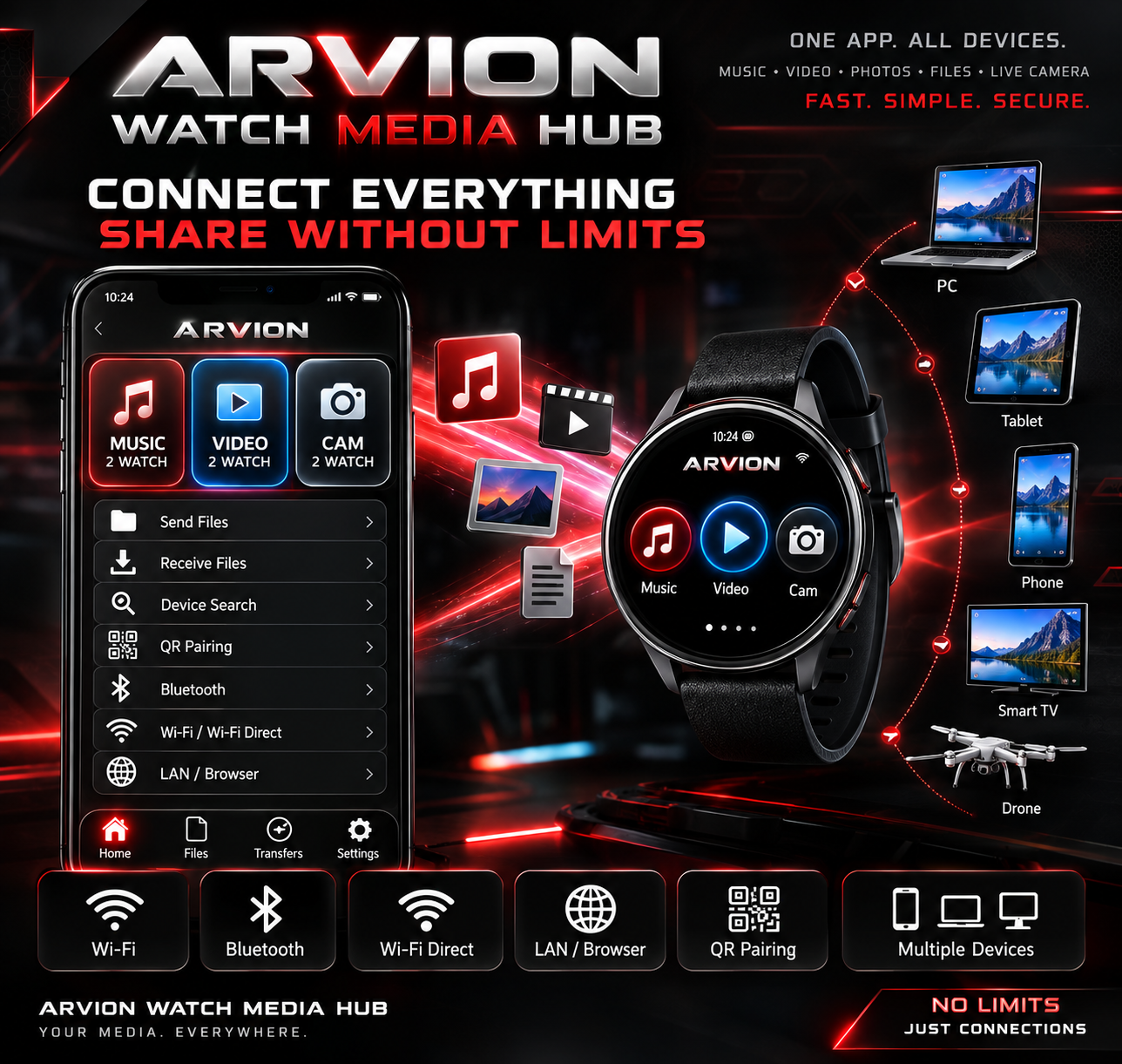
See app on Google PlayView ARVION Watch Media Hub features
Before transferring photos, documents and media
- Install ARVION Watch Media Hub on compatible Android and Wear OS devices and check that the app can connect them.
- Make sure the receiving device has enough storage, especially for videos or many high-resolution photos.
- Remember that receiving a file does not guarantee the watch can open its format. A PDF may be stored on the watch but still require a compatible viewer.
Step by step: phone-to-watch and watch-to-phone transfer
- Open the hub on the phone and watch and establish the available local connection.
- Open the file explorer or transfer section and check which device is sending and which one is receiving.
- Choose photos, documents, audio, videos or other supported files. When offered, add more than one file to a transfer queue.
- Start the transfer and monitor the file name, direction and progress. Avoid disconnecting either device before completion.
- On the receiving device, open the received-file location. To send a file back, reverse the source and destination and repeat the transfer.
What about transferring files to a computer?
The hub also describes Browser Share for selected files: another device on the same local network can open a browser and download the files being shared. The sharing session must remain active. This is a local transfer feature, not a permanent cloud file hosting service.
If a transfer fails
- Watch does not appear: reopen the watch and phone apps, reconnect and verify supported Bluetooth, Wi-Fi or QR pairing steps.
- Transfer is very slow: try a stable local Wi-Fi network for the transfer mode and keep devices close.
- File does not open after arrival: check whether the watch has an app that understands the file type.
- A batch transfer stops: free storage, retry fewer files and inspect transfer progress.
Frequently asked questions
Can I transfer PDFs to a Wear OS watch?
You can send supported document files, including PDFs, to the watch. Whether the watch can open them depends on its installed apps.
Can I transfer files from the watch back to Android?
The hub describes two-way transfers, so the phone can also receive supported files sent from the watch.
For media-specific instructions, see our music and video transfer guides, or learn to preview the Android phone camera on your watch. Explore the complete app.