How to view your Android phone camera on a Wear OS watch
Want to see the image from your phone camera on your wrist? CAM 2 WATCH in ARVION Watch Media Hub provides a phone-camera preview on compatible Wear OS watches over a suitable local connection. The video source is your phone camera, not a camera built into the watch.
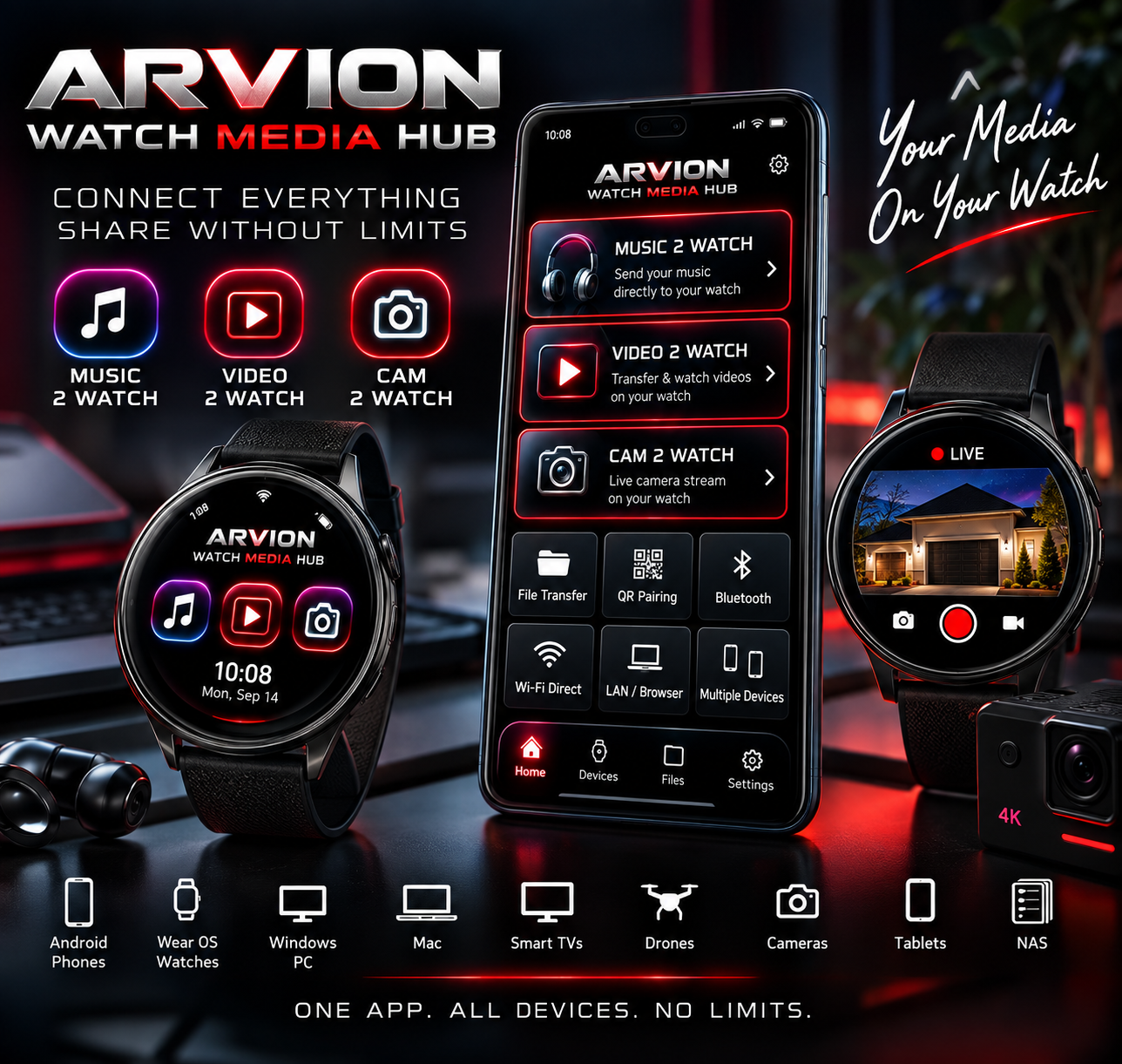
See app on Google PlayView ARVION Watch Media Hub features
What you need for camera preview
- A compatible Android phone and Wear OS smartwatch, with ARVION Watch Media Hub installed and available for both.
- A working local connection between the two devices. The preview is not intended to be a remote cloud-surveillance service.
- Camera permission on the phone, and microphone permission only when the chosen recording feature needs it. Android displays camera and microphone activity indicators.
Step by step: show the phone camera on your watch
- Open ARVION Watch Media Hub on the Android phone and on the Wear OS watch.
- Connect the devices using a pairing method supported by your setup and verify the connection status.
- Start the CAM 2 WATCH camera session on the phone, allowing the necessary Android permissions.
- On your watch, open the camera preview. Keep the devices on a suitable local wireless connection.
- Use the available front/rear camera and recording controls where supported. If controls disappear, tap the watch screen to reveal them.
Phone camera preview is not a smartwatch camera
The watch displays a preview from your Android phone. It does not add a physical camera to the smartwatch. Available controls and recording behavior depend on your phone, watch, Android permissions and the connection. Preview latency may increase when the network is weak.
If the camera preview is black or disconnected
- Start the camera session on the phone first; opening only the watch screen is not enough.
- Check Android camera permission and confirm that another app is not exclusively using the camera.
- Verify both apps are connected, and check local Wi-Fi or other supported pairing settings.
- If the screen freezes, restart the session and bring the devices closer to the access point or each other.
Frequently asked questions
Does the watch need its own camera?
No. The image comes from the paired Android phone's camera.
Can I use this across the internet from another city?
The described CAM 2 WATCH workflow uses a suitable local connection. It should not be treated as a remote cloud camera service.
In the same app you can also transfer music, video and files between your phone and Wear OS watch. Explore the complete app.