 ARVION
Connect your Android phone to a Wear OS smartwatch with ARVION HUB
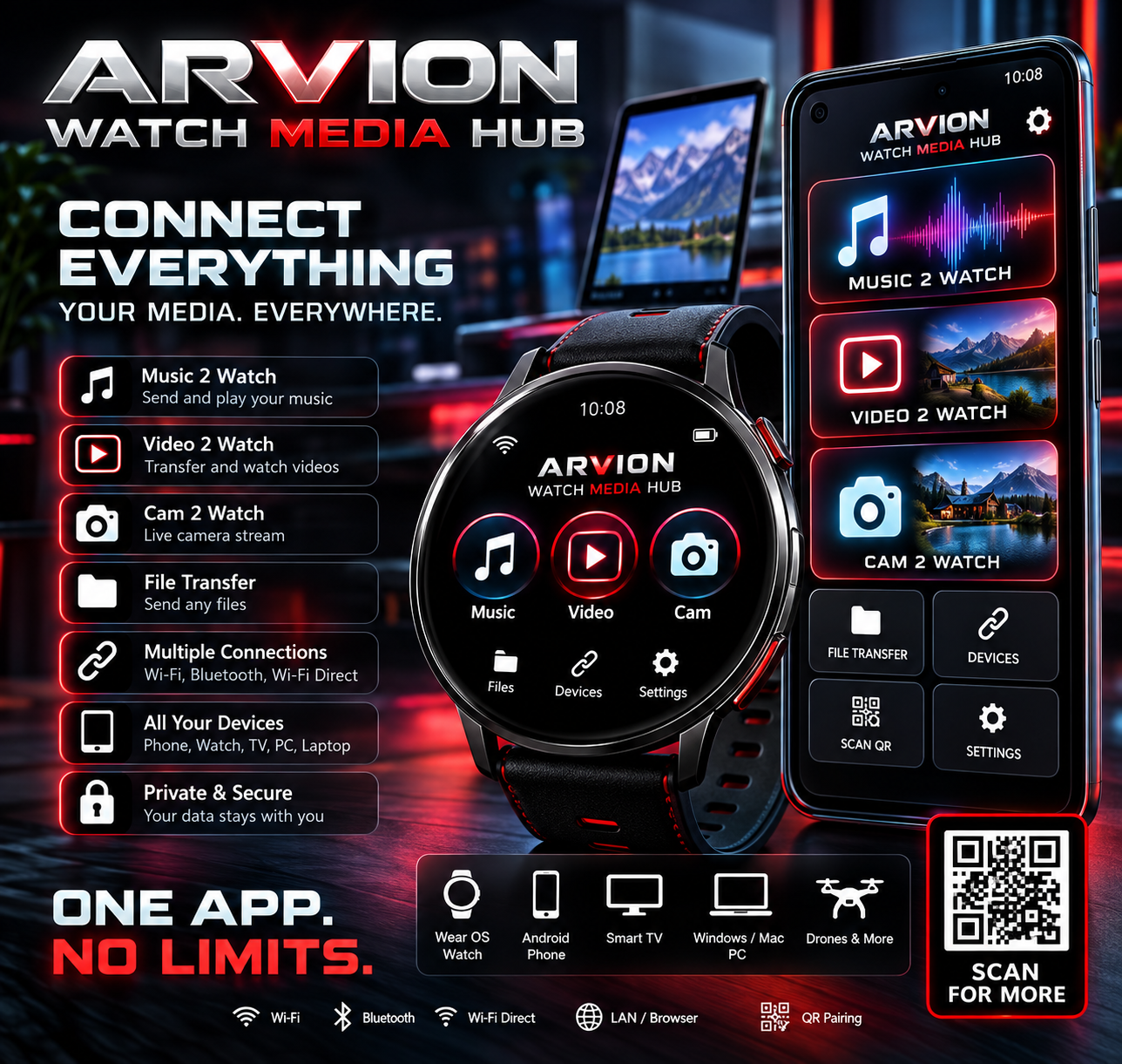
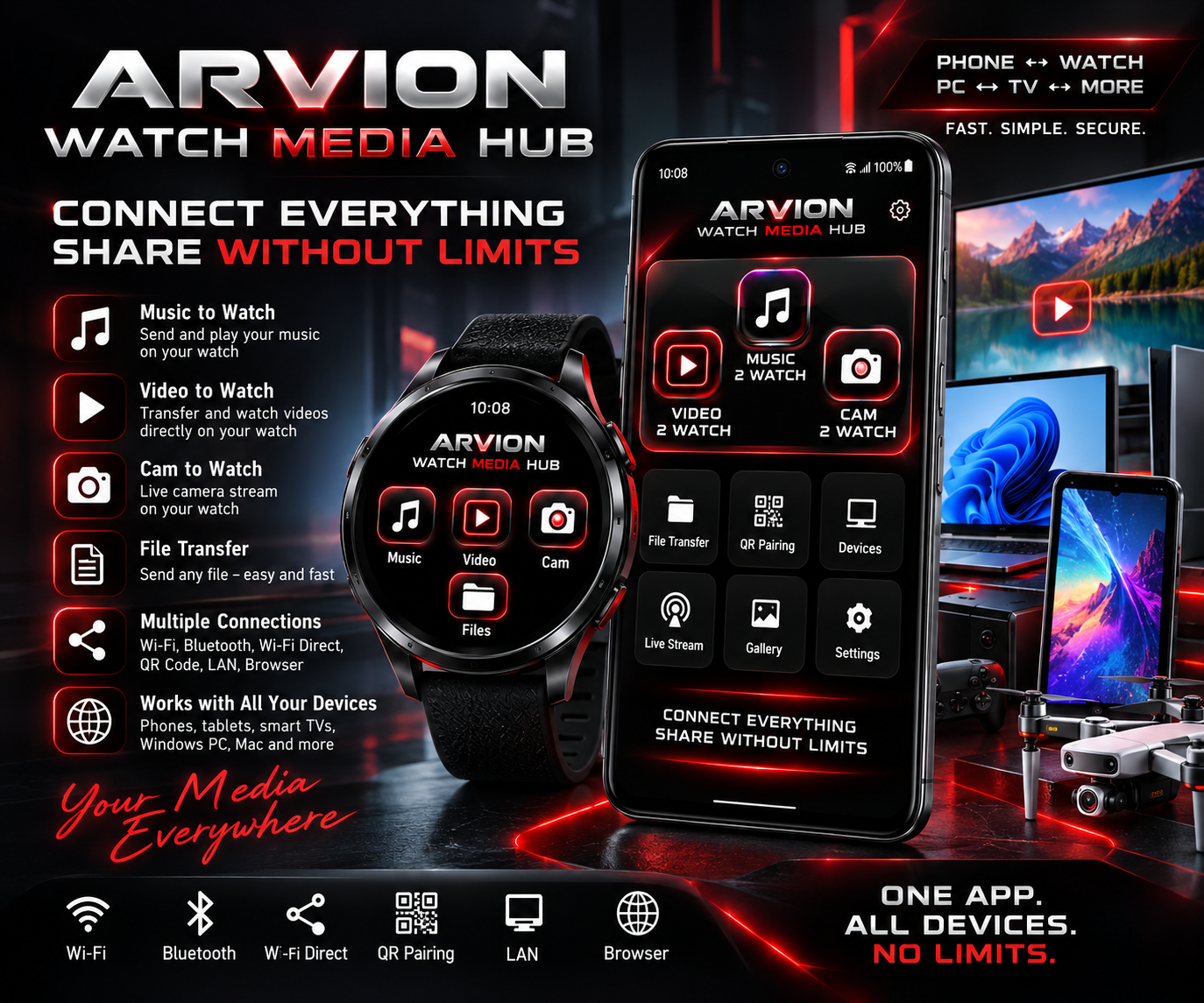
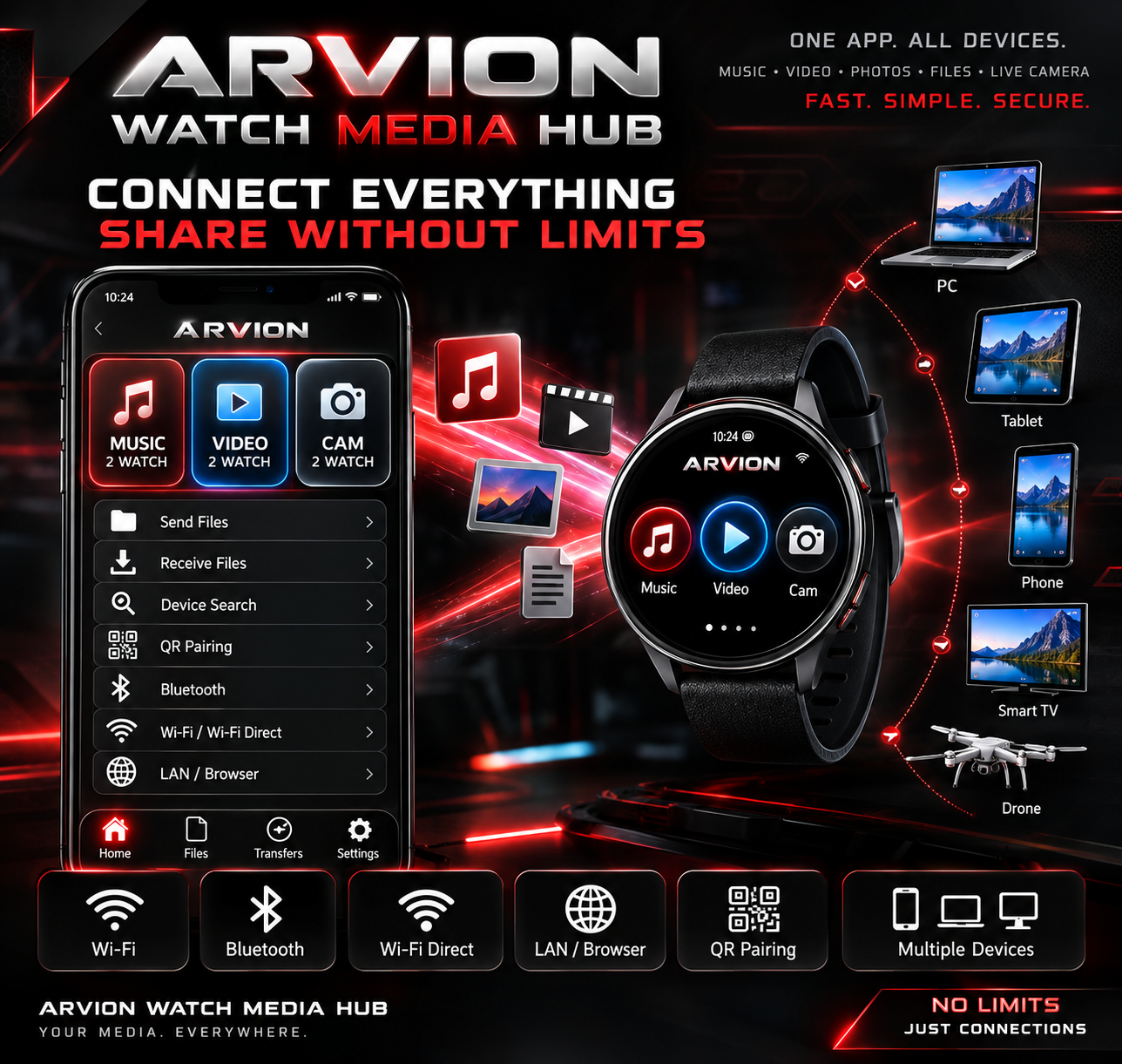
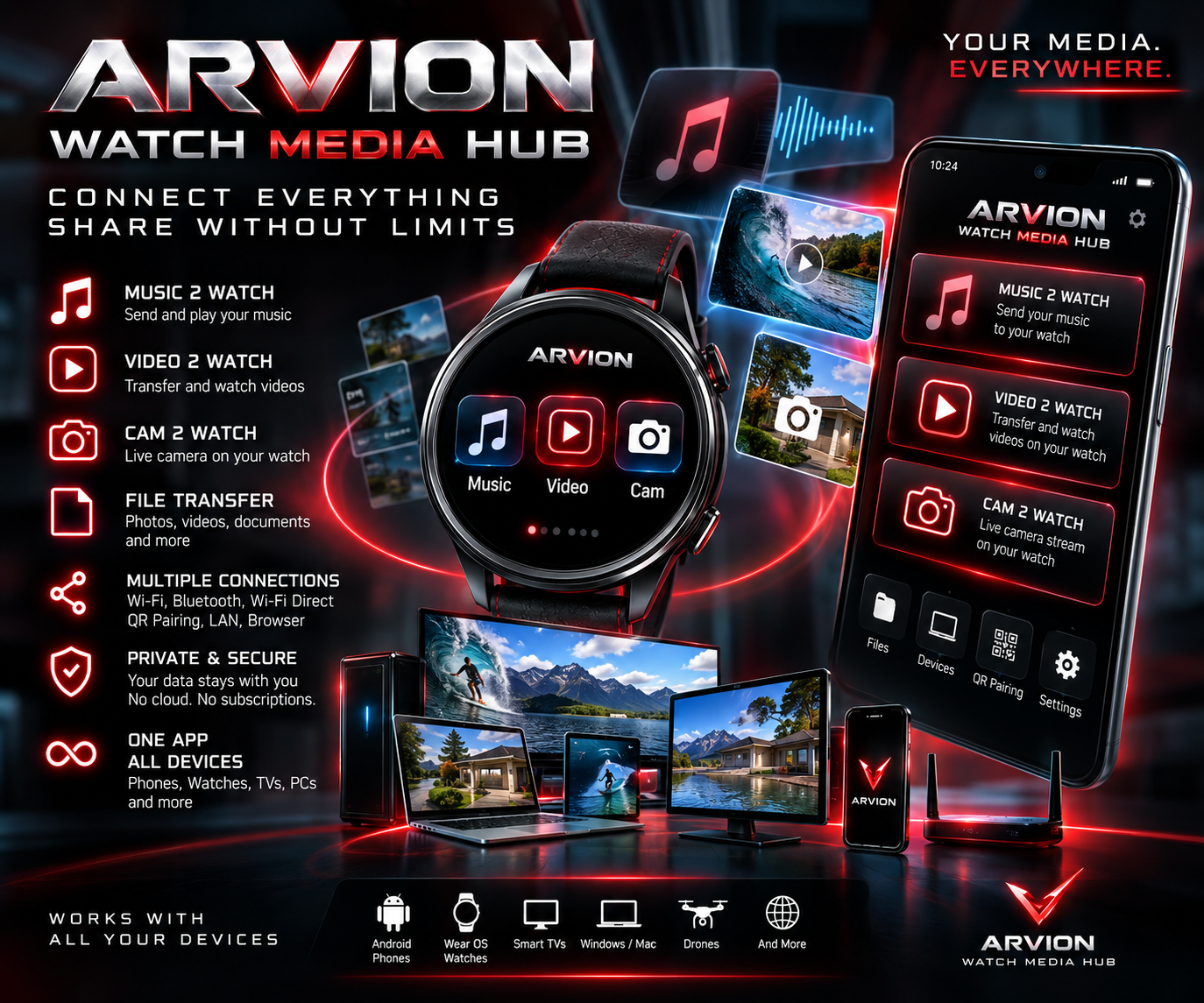
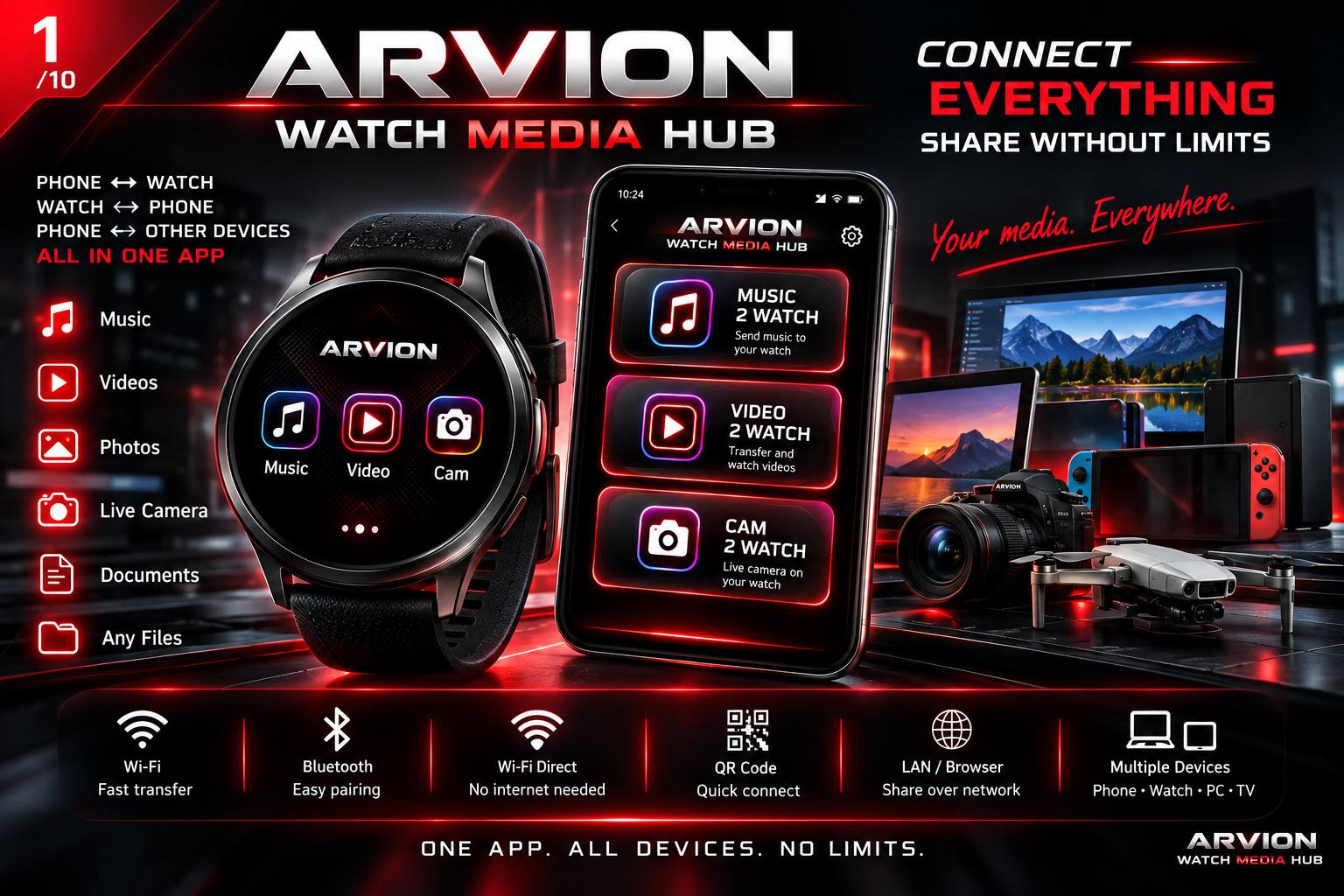
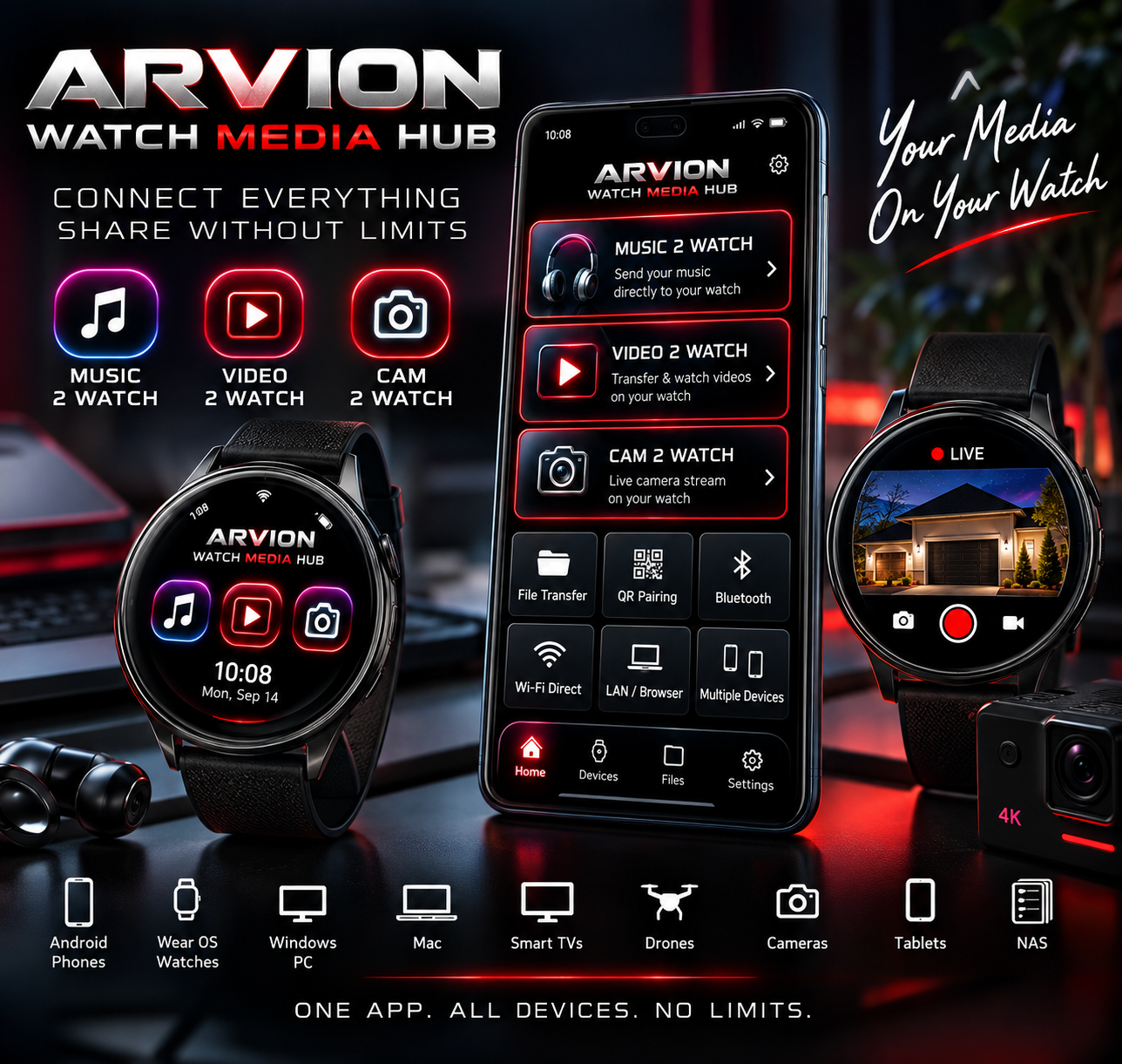
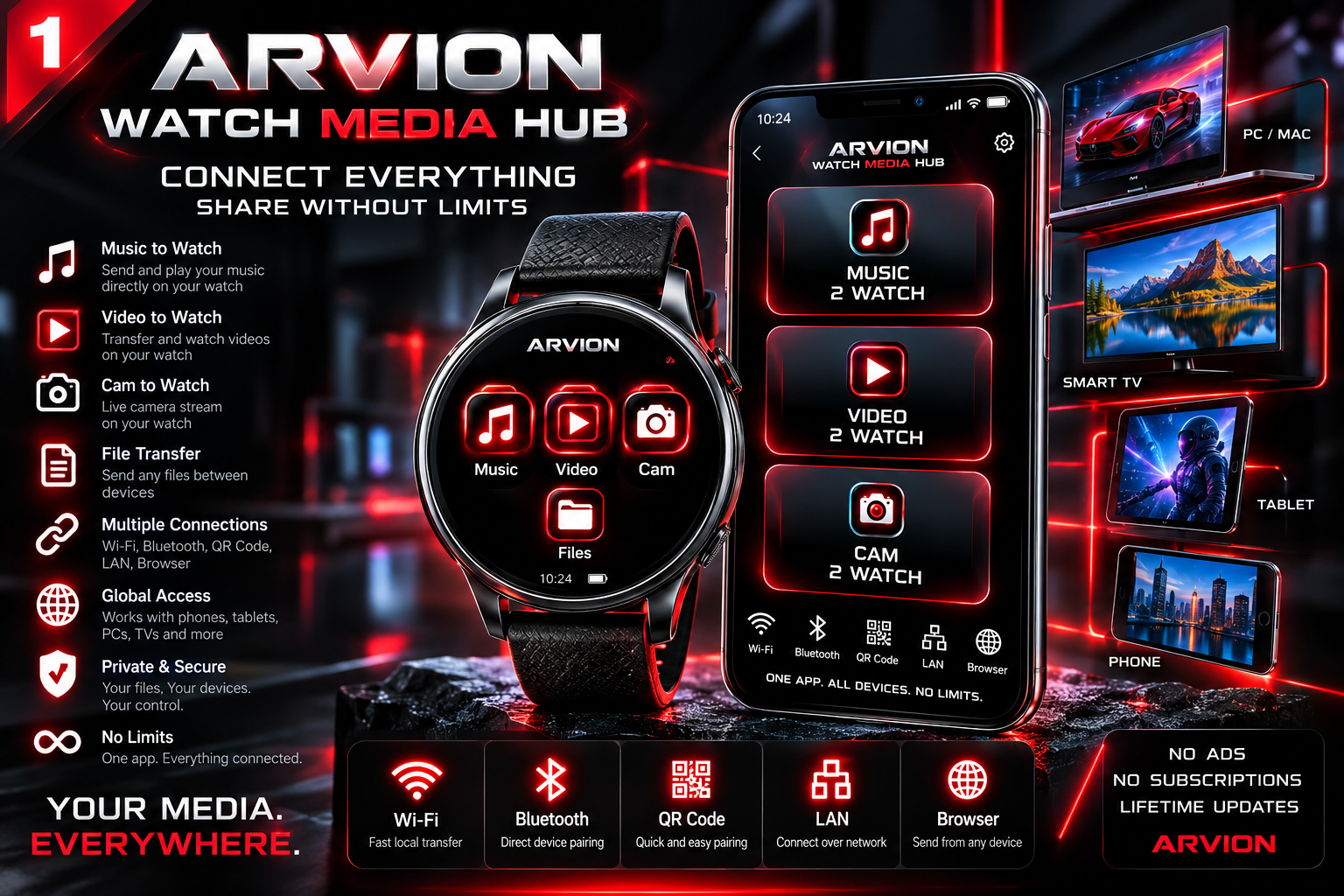
Looking for a way to connect your phone and smartwatch, send files to your watch or play music without carrying your phone? ARVION Watch Media Hub brings MUSIC 2 WATCH, VIDEO 2 WATCH, CAM 2 WATCH and a two-way file explorer into one Android and Wear OS app. Transfer your own music, videos, photos and documents, preview your phone camera on your wrist and manage media over a local connection.
App gallery
Availability
The public Google Play listing is not available yet. This page introduces the app’s features and purchase model. Installation instructions apply once the phone and watch versions are available.
Connect an Android phone and Wear OS watch
Install the app on your Android phone and compatible Wear OS smartwatch, open both apps and pair the devices. Discover supported connections using Bluetooth, Wi-Fi or QR pairing; local LAN and Wi-Fi Direct are available on supported hardware. QR exchanges pairing details, not the media itself. For music or video streaming, connect both devices to the same Wi-Fi network; a phone hotspot can provide that local network.
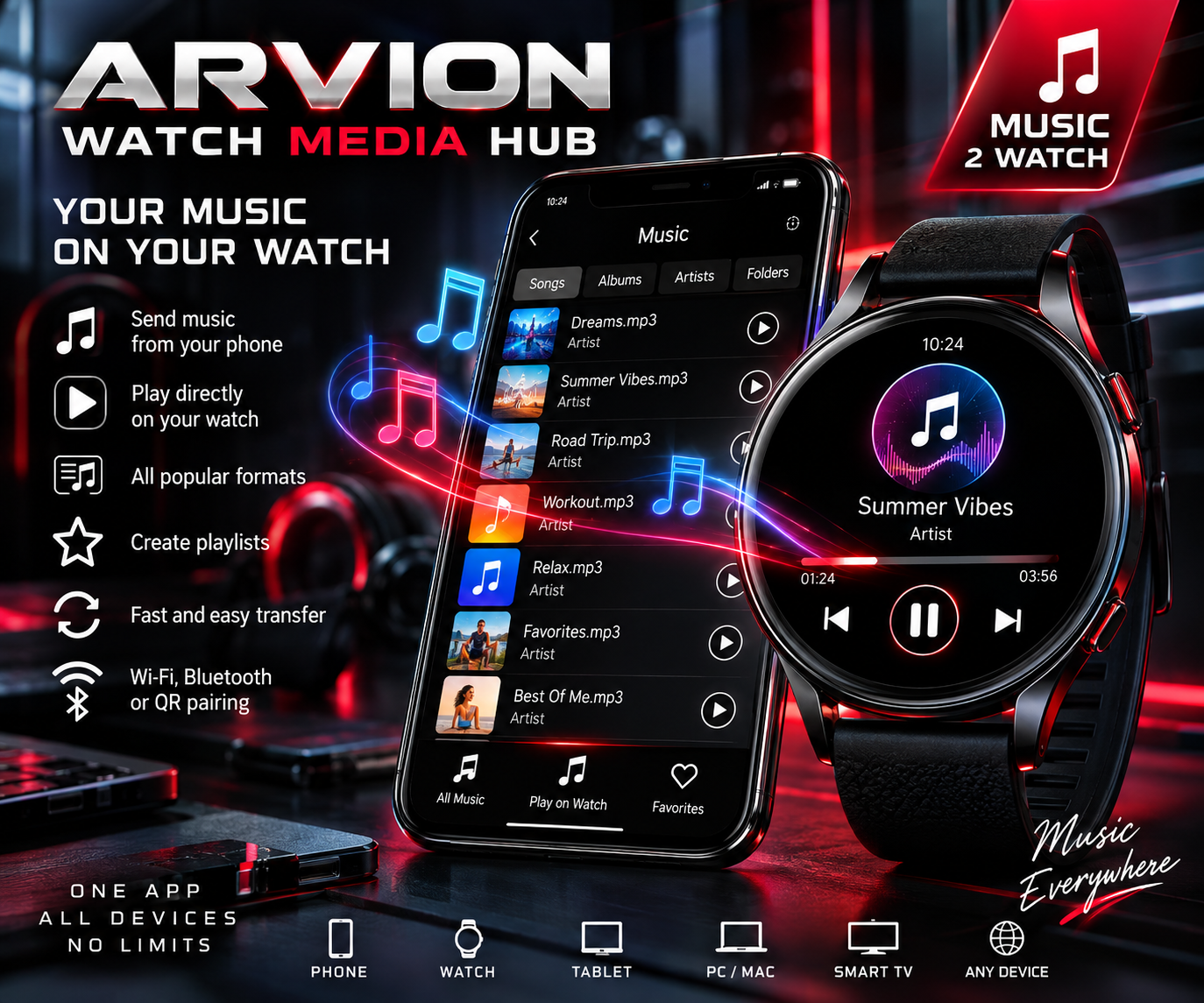
MUSIC 2 WATCH – transfer songs and listen offline
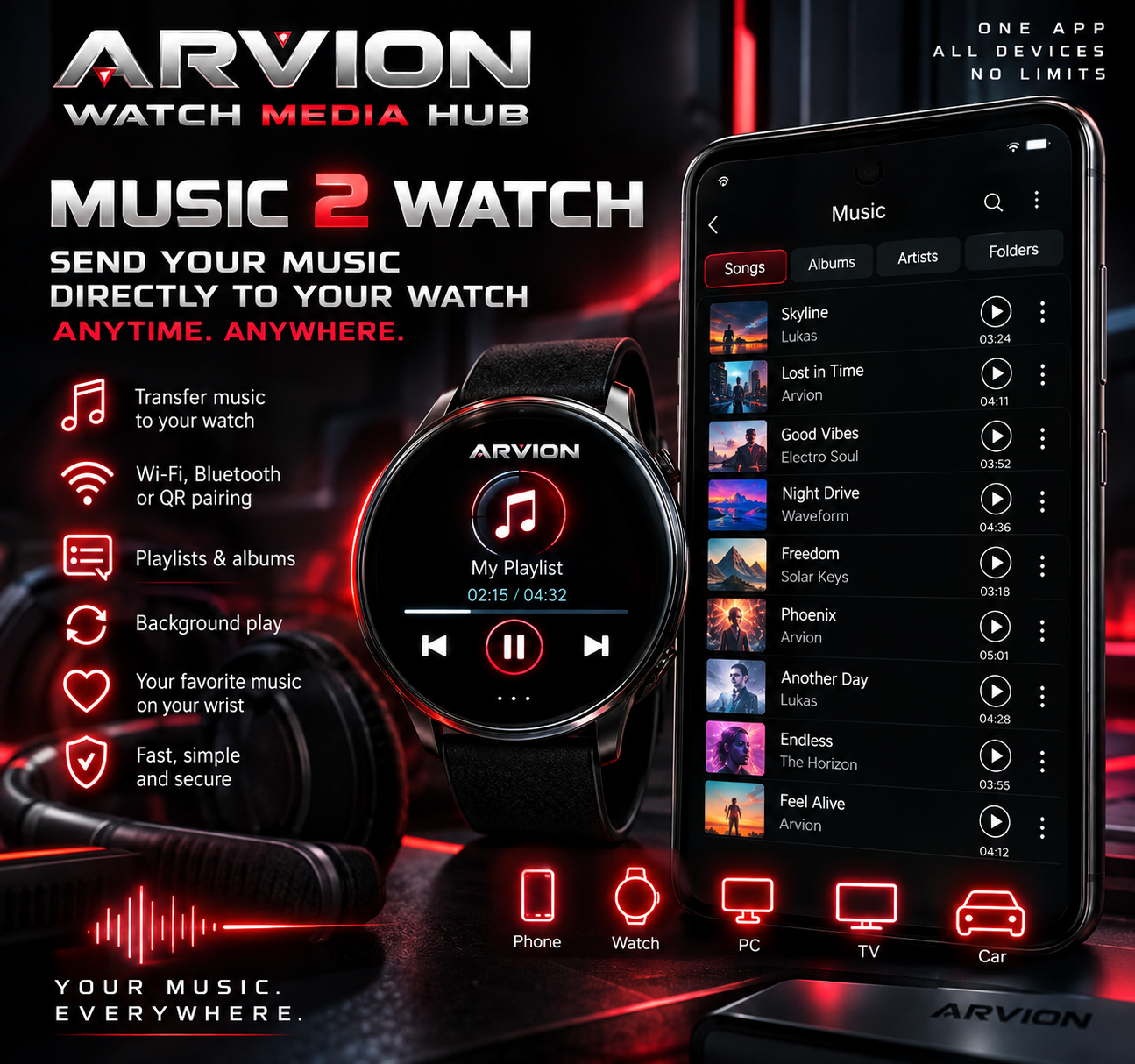
Copy your own songs, music files and audio recordings from Android to your smartwatch. Organize an offline watch library and play supported tracks without an active phone connection. Music synchronization checks which tracks are missing on the watch and transfers them. You can also stream from the phone when both devices use the same Wi-Fi network.
VIDEO 2 WATCH – transfer and play videos on your watch
Send personal videos to your Wear OS watch, open supported videos saved on its storage or stream from your phone over local Wi-Fi. WATCH OPTIMIZED can prepare a 480p MP4 copy using H.264 video and AAC audio. Video conversion and playback depend on your watch, storage space and supported codecs.
CAM 2 WATCH – see your phone camera on your smartwatch
Use the watch as a preview screen to check what your phone camera sees. Switch between front and rear cameras, use microphone and recording controls and tap to reveal automatically hidden controls. Start the camera session on the phone and grant the necessary permissions. A suitable local wireless connection is required; Android shows active camera or microphone indicators.
Transfer files between phone and watch in both directions
Use the file explorer to send photos, music, videos, PDFs and selected documents from phone to smartwatch or from watch back to phone. Select individual files, queue several transfers or package a folder as ZIP. Check the receiving device, file name, direction and transfer percentage, and cancel a transfer if needed. A watch can store a format it cannot itself display.
Browser Share – download watch or phone files to a PC
Share selected files with a browser on another phone, tablet or computer connected to the same local network. The receiving device can download shared files without installing the companion app. Keep Browser Share active during the download.
Clear transfer progress and offline media storage
A transfer panel on Wear OS keeps the file name, direction, percentage and progress bar visible while moving between app screens. Successful delivery is marked by a green check before the panel closes. Your media remains on the receiving device; music and videos already stored on the watch can be opened offline when supported.
60-minute trial, one-time purchase, no ads
Explore the full hub during a 60-minute trial counted from installation, even while the app is closed. Unlock the full version through a one-time Google Play purchase and restore your purchase when needed. There are no ads or subscriptions. Local file transfer does not require cloud media storage or an app account; installation and purchase checks may require internet. The interface supports 14 languages.
Frequently asked questions about connecting your phone and watch
How do I transfer music from an Android phone to a Wear OS watch?
Install ARVION Watch Media Hub on both compatible devices, connect them, open MUSIC 2 WATCH and select your own audio files. Supported tracks copied to the watch can play offline.
Can I watch videos on my smartwatch without internet?
Yes, compatible video files already stored on the watch can play locally. Streaming videos from the phone requires both devices on the same local Wi-Fi network.
Can I display my phone camera on my watch?
CAM 2 WATCH provides a preview of the phone camera on a compatible watch when you start a session on the phone, grant permissions and have a suitable local connection.
Can I send photos and PDF files from the watch back to the phone?
Yes. The file explorer supports two-way transfers. Whether a received PDF, photo or other file opens depends on the destination device and its installed apps.
Does ARVION HUB work with every smartwatch?
No. The watch application is designed for compatible Wear OS models. Check device support and availability in Google Play; Apple Watch and watches with other operating systems are not automatically supported.
One hub for your Android phone and Wear OS smartwatch
Bring music, videos, file transfers and phone camera preview together on your wrist. Discover ARVION HUB and check availability for your devices.
Availability